Custom recurrence allows you to create bill reminders that repeat on a schedule that best fits your needs, such as every 2 weeks, the 15th of every month, or the second Saturday of each month.
Step 1: Create a recurring bill reminder
First, create a new bill reminder.
Related FAQ: How do I add a recurring bill reminder?
Step 2: Select the Custom repeat option
- While creating or editing a bill, locate the Schedule section.
- Tap the Schedule field.
- Set the Due Date.
- Turn on the Repeat this bill toggle.
- Tap Repeat Option to view the available recurrence options.
- Select Custom.
Step 3: Configure the custom recurrence
Customize the recurrence schedule based on your preference.
From
The From date determines when the recurring schedule begins. By default, it uses the selected due date.
Repeat Every
Choose how frequently the bill should repeat by entering a Number and selecting one of the following intervals:
- Day
- Week
- Month
- Year
For example:
- Every 2 Weeks
- Every 1 Month
- Every 1 Year
Monthly recurrence options
When repeat selected as monthly, you can choose either:
- Repeat Monthly – The bill repeats on the same calendar date every month (for example, the 11th of each month).
- Repeat on Weekday – The bill repeats on the same weekday occurrence each month (for example, the Second Saturday of every month).
Ends
Choose when the recurring bill should stop.
- Never – The reminder continues indefinitely.
- On Date – Stops after the selected end date.
- After Occurrences – Stops after a specified number of occurrences.
Example: If you choose After 5 occurrences, the reminder will automatically stop after it has been created five times.
Example
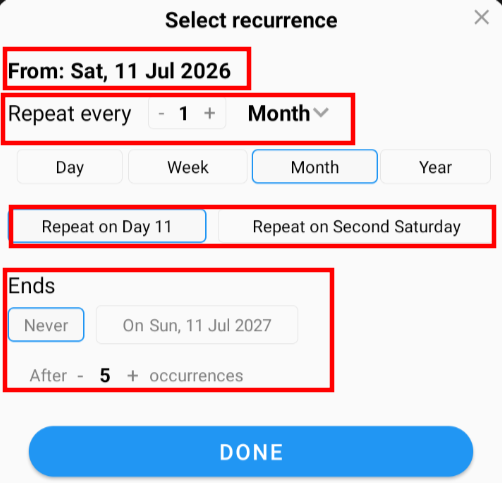
The example below shows a bill that:
- Starts on 11 Jul 2026
- Repeats every 1 month
- Repeats on the 11th day of each month
- Can continue Never, Until a selected date, or after a specified number of occurrences
If you experience any issues or have questions, please contact us at support@timelybills.app. We're always happy to help.
Was this article helpful?
That’s Great!
Thank you for your feedback
Sorry! We couldn't be helpful
Thank you for your feedback
Feedback sent
We appreciate your effort and will try to fix the article