TimelyBills lets you add Tags to your Income, Expense, and Transfer transactions so you can easily organize, filter, and analyze your financial activity. Tags help you quickly group related transactions and gain better insights into your spending and income patterns.
You can filter transactions using tags from different sections of the app.
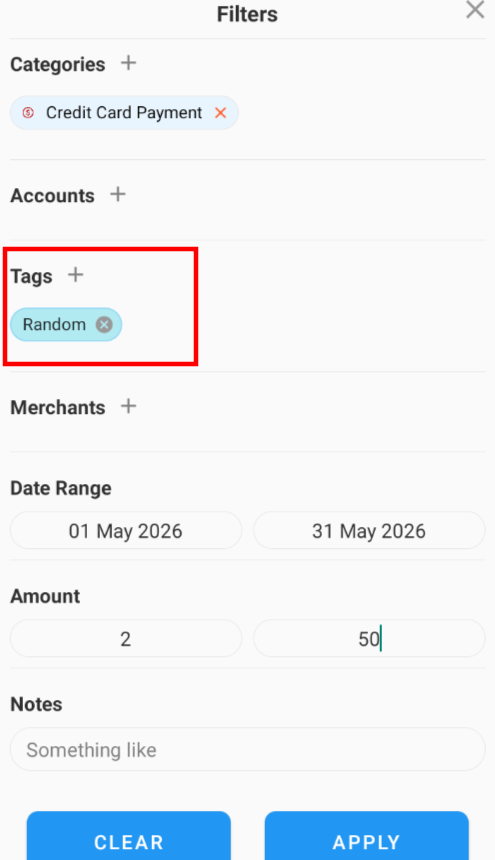
- Filter Transactions by Tags from the Transaction List
1. Scroll down on the Home screen and tap View All in the Transactions card
2. Tap the Filter (sliders) icon next to the Search bar
3. On the Filters screen, select Tags
4. Choose from your existing tags or tap Add New Tag to create one
5. Once applied, only transactions matching the selected tag(s) will be displayed
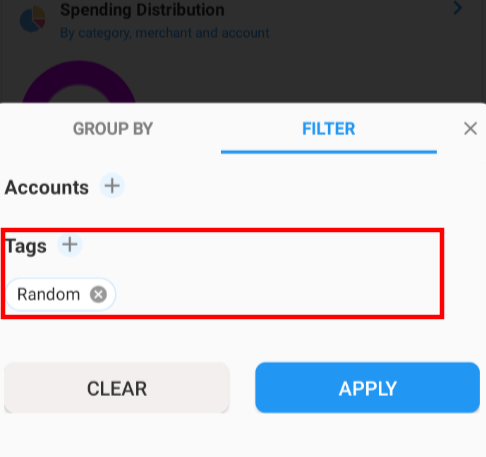
- Filter Reports by Tags from the Assistant Screen
1. Open the Assistant screen from the Home screen.
2. Select the Reports tab (if not already selected).
3. Tap the Filter (sliders) icon.
4. Under Filters, tap Tags.
5. Select an existing tag or create a new one using Add New Tag.
6. This helps you generate reports and insights for specific categories of transactions.
|
If you counter any problem or have a query, please contact support at support@timelybills.app
Was this article helpful?
That’s Great!
Thank you for your feedback
Sorry! We couldn't be helpful
Thank you for your feedback
Feedback sent
We appreciate your effort and will try to fix the article