Shared bank accounts let all group members track account activity from a single place.
Steps to view a shared bank account
- Open the TimelyBills app.
- Go to Accounts from the Home screen.
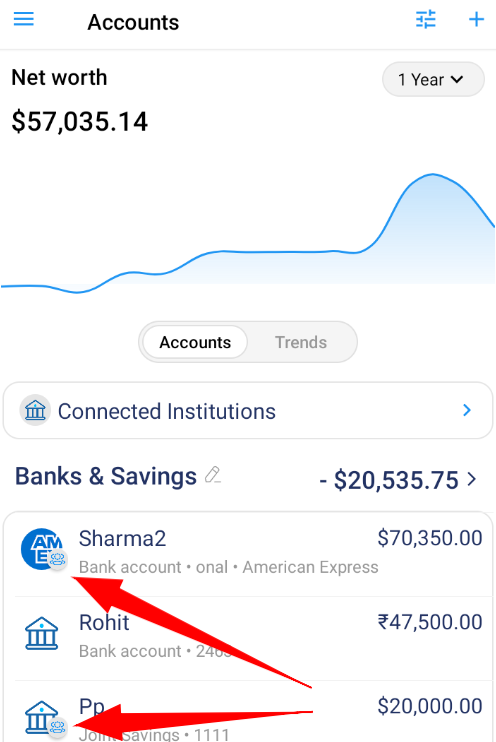
- Look for the account with the Family icon in the account list. This icon indicates that the account is shared with your group members.
- Tap the account to open its Details.
Helpful tips
- View Upcoming Transactions: Tap View Upcoming Transactions to see all scheduled transactions for the account, including those created by you and other group members.
- Browse Recent Transactions: Tap the Transactions card to view account activity in:
- Month View: Transactions grouped by month.
- Activity View: Transactions sorted by the most recent updates and edits.
- Include in Net Worth: Enable the Include in Net Worth toggle if you want this shared account to be included in your overall net worth calculation.
Note: The Family icon beside an account indicates that it is shared with your group members.
If you have any questions or experience any issues, please contact our support team at support@timelybills.app.