If you’ve already paid for your subscription but are having trouble accessing it on your mobile device, please follow the troubleshooting steps
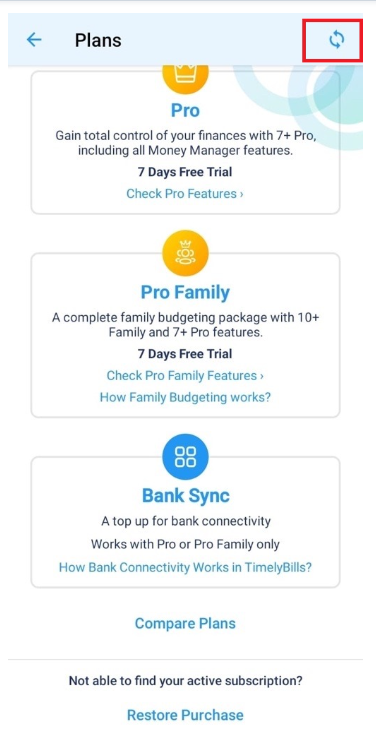
- Open the app and go to the Dashboard.
- Tap the Menu icon.
- Select Pro Features.
- Tap the Refresh icon at the top-right corner of the screen.
2. Restore Your Purchase:
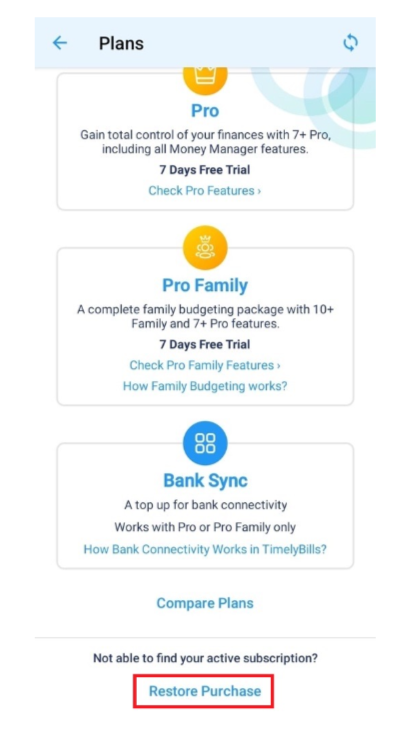
- Go to the app’s Dashboard.
- Tap the Menu icon.
- Select Pro Features or Subscription.
- At the bottom, tap the link labeled Restore Purchase.
- This will trigger the app to fetch your subscription from the Google Play Store or Apple App Store.
- After a successful restore, your subscription should appear correctly in the app.
3. If the above steps don’t resolve the issue:
- Open the Play Store (or the App Store on iOS).
- Go to Payments & Subscriptions (or just Subscriptions for Apple).
- Find and select your TimelyBills subscription.
- Take a screenshot of the subscription details.
- Email the screenshot to our support team at support@timelybills.app.
- After verifying the details, our team will manually sync your purchase to the app.
Was this article helpful?
That’s Great!
Thank you for your feedback
Sorry! We couldn't be helpful
Thank you for your feedback
Feedback sent
We appreciate your effort and will try to fix the article